Azure Active Directory sets the stage for this enthralling narrative, offering readers a glimpse into a story that is rich in detail and brimming with originality. From its purpose to real-world scenarios, this topic covers it all.
Overview of Azure Active Directory
Azure Active Directory (Azure AD) is Microsoft’s cloud-based identity and access management service. It serves as a comprehensive solution for managing user identities and access to resources in the cloud, on-premises, and in hybrid environments.
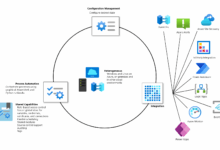
Key Features and Benefits
- Single Sign-On (SSO): Allows users to access multiple applications with a single set of credentials.
- Multi-factor Authentication (MFA): Adds an extra layer of security by requiring users to provide multiple forms of verification.
- Application Management: Enables centralized management of applications and access permissions.
- Self-Service Password Reset: Allows users to reset their passwords without IT intervention.
Real-World Usage
Azure AD is commonly used by organizations to streamline user authentication and access control across various services such as Office 365, Azure, and third-party applications. For example, employees can securely access company resources from any location using Azure AD’s SSO capabilities.
Comparison with Traditional Active Directory
Azure AD differs from traditional on-premises Active Directory by providing cloud-based identity and access management, supporting a wider range of authentication methods, and offering scalability for modern IT environments.
Setting Up Azure Active Directory
- Sign in to the Azure portal and create a new Azure AD tenant.
- Add users, groups, and applications to Azure AD for identity and access management.
- Configure authentication methods, security settings, and conditional access policies as needed.
Authentication Methods Supported
- Username and Password
- Multi-Factor Authentication (MFA)
- Biometric Authentication
- Security Keys
Conditional Access Policies
Conditional access policies allow organizations to enforce specific access controls based on conditions such as user location, device compliance, or risk level.
Managing User Identities Effectively
- Regularly review and update user permissions to ensure appropriate access levels.
- Implement role-based access control to assign permissions based on user roles and responsibilities.
- Leverage Azure AD reporting and monitoring tools to track user activity and security events.
- Create an Azure account and log in to the Azure portal.
- Select “Create a resource” and search for “Azure Active Directory.”
- Click on “Create” and fill in the required details to create your Azure AD.
- Configure user accounts, groups, and policies to manage access.
- Integrate with on-premises Active Directory for seamless user authentication.
- Implement role-based access control (RBAC) to assign permissions effectively.
- Enable Multi-Factor Authentication (MFA) for an added layer of security.
- Regularly review and update user permissions to ensure least privilege access.
- Set up Azure AD Connect to sync on-premises AD with Azure AD.
- Configure password hash synchronization or pass-through authentication.
- Ensure proper DNS configuration for seamless integration.
- Azure Active Directory Free: Basic features for cloud-based identity and access management.
- Azure Active Directory Premium P1: Advanced features like Conditional Access and Identity Protection.
- Azure Active Directory Premium P2: Additional features like Identity Governance and Privileged Identity Management.
- Go to the Azure portal and navigate to Azure Active Directory.
- Select “Security” and then “MFA” to configure settings for users.
- Choose the authentication methods and enable MFA for users or specific groups.
- Create policies based on conditions like user location, device compliance, or risk level.
- Enforce access controls like requiring MFA or blocking access based on policy criteria.
- Monitor and adjust policies to adapt to changing security needs.
- Set up SSO applications in Azure AD to enable users to access multiple apps with one set of credentials.
- Configure SAML-based SSO for supported applications for seamless authentication.
- Test the SSO configuration to ensure smooth user experience.
- Global Administrator: Has access to all administrative features
- User Administrator: Can manage user accounts and groups
- Application Administrator: Manages applications within Azure AD
- Username and Password: Users can sign in using their Azure AD username and password.
- Multi-Factor Authentication (MFA): Adds an extra layer of security by requiring users to verify their identity using a second form of authentication.
- OAuth: Allows applications to authenticate users without exposing their credentials.
- Federated Authentication: Enables users to sign in using their existing corporate credentials through federation with on-premises Active Directory.
- Ensure proper user provisioning and deprovisioning processes are in place to maintain security.
- Regularly review and update your SSO configurations to align with your organization’s changing needs.
- Implement role-based access control to ensure users have the appropriate level of access to resources.
- Enable Single Logout to improve security by ensuring users are logged out of all applications when they sign out of one.
- Monitor SSO usage and activity to detect any suspicious behavior and take appropriate action.
- Azure AD supports Multi-Factor Authentication (MFA) to add an extra layer of security by requiring users to verify their identity using multiple factors.
- Conditional Access policies allow you to set specific conditions that must be met before granting access, such as location or device compliance.
- Identity Protection policies help in detecting suspicious activities and protecting against identity-related threats.
- Azure AD complies with various industry standards such as GDPR, HIPAA, and ISO 27001, ensuring that your organization meets regulatory requirements.
- It provides tools for data classification and encryption, helping you secure sensitive information and maintain compliance with data protection laws.
- Go to the Azure portal and navigate to Azure Active Directory.
- Select “Privileged Identity Management” and click on “Add a new role assignment.”
- Assign users to privileged roles and configure access reviews to monitor and control access within your organization.
- Azure AD integrates seamlessly with Azure Information Protection to ensure data security by classifying and encrypting sensitive information.
- By using Azure Information Protection, you can control access to documents and emails based on their classification and enforce encryption policies.
- Azure AD Connect Health helps in monitoring and securing hybrid identity infrastructures by detecting and resolving identity-related issues.
- It provides insights into the health of your identity infrastructure and helps in identifying potential vulnerabilities or misconfigurations.
- Applications can be added to Azure Active Directory by accessing the Azure portal and navigating to the “Enterprise Applications” section.
- Once added, applications can be configured with specific settings such as user access permissions, single sign-on options, and security controls.
- Application permissions are managed through Azure Active Directory’s role-based access control (RBAC) system, allowing administrators to assign specific permissions to users or groups.
- Permissions can be fine-tuned to control access to sensitive data or features within an application.
- Azure Active Directory supports a wide range of applications, including Microsoft 365 apps, third-party SaaS applications, and custom-developed applications.
- Examples of integrated applications include Salesforce, ServiceNow, Dropbox, and more.
- To enable SSO for an application in Azure Active Directory, administrators can configure the necessary settings within the application’s properties in the Azure portal.
- Users can then seamlessly access the application without the need to log in separately, enhancing user experience and security.
- In Azure Active Directory, users and groups can be assigned to applications to control who has access to specific applications and their resources.
- This granular control allows for efficient management of application access based on roles or teams within an organization.
- OAuth is commonly used for authorization and secure access to resources, while SAML is focused on authentication and single sign-on capabilities.
- OAuth is more suitable for API access and mobile applications, while SAML is often used in web-based applications.
- Utilize pre-built reports: Azure Active Directory offers a range of pre-built reports that can be easily accessed and customized to meet specific monitoring needs.
- Customize reports: Administrators can create custom reports based on specific parameters, such as user groups, applications, or timeframes, to gain deeper insights into user activities and system performance.
- Automate report generation: Azure Active Directory allows for automated report generation and distribution, ensuring that administrators stay informed about critical events and trends in real-time.
- Enable Multi-Factor Authentication (MFA) for added security.
- Regularly review and analyze security reports and alerts.
- Implement role-based access controls to restrict permissions based on job roles.
- Monitor user activities and investigate any suspicious behavior promptly.
- Stay informed about security updates and patches released by Microsoft for Azure Active Directory.
- Sign in to the Azure portal using an account with global administrator permissions.
- Go to Azure Active Directory, then Password reset.
- Select the appropriate option for the users, such as security questions, email verification, or both.
- Enable self-service password reset for the desired users or groups.
- Configure the settings and notifications for the password reset process.
- Enforcing multi-factor authentication for added security.
- Setting up strong password requirements and expiration policies.
- Monitoring and auditing password reset activities for any suspicious behavior.
- Answering security questions set during the initial configuration.
- Verifying their identity through email or SMS verification codes.
- Using Microsoft Authenticator app for multi-factor authentication.
- Download Azure Active Directory Connect from the official Microsoft website.
- Run the installation wizard and follow the on-screen instructions.
- Specify the credentials for connecting to Azure AD and your on-premises directory.
- Choose the appropriate configuration options based on your organization’s requirements.
- Complete the installation process and verify the successful installation.
- Customize filtering options to include or exclude specific users or groups.
- Define attribute mappings to ensure accurate synchronization of user data.
- Configure scheduling for synchronization tasks to meet your organization’s needs.
- Check network connectivity between the on-premises server and Azure AD.
- Review event logs for detailed error messages and potential solutions.
- Ensure that the necessary permissions are granted for synchronization tasks.
- Location
- Device state
- User risk
- Application sensitivity
- Evaluate the risk level associated with each policy
- Define the order in which policies should be applied
- Create policy exceptions for specific scenarios
- Real-time risk detection: Azure AD Identity Protection continuously monitors user activities and login attempts to identify suspicious behavior in real-time.
- Multi-factor authentication enforcement: It can prompt users for additional verification steps when a risky sign-in attempt is detected.
- Risk-based conditional access policies: Organizations can create policies based on risk levels to automatically block or allow access to resources.
- Integration with Microsoft Intelligent Security Graph: Azure AD Identity Protection benefits from Microsoft’s vast threat intelligence network to enhance risk assessment.
- Sign-in risk policy: Detects suspicious sign-in attempts based on various factors like location, device, and user behavior.
- User risk policy: Identifies compromised accounts or unusual activities associated with specific users.
- Impossible travel policy: Flags sign-in attempts from geographically distant locations in a short period, indicating potential account compromise.
- Enable multi-factor authentication for all users: Adding an extra layer of security can significantly reduce the risk of unauthorized access.
- Regularly review and adjust risk detection policies: Keep up-to-date with evolving threats and adjust policies to align with organizational security requirements.
- Educate users on security awareness: Promote best practices among users to recognize and report suspicious activities promptly.
- Integration with Azure AD: AAD DS seamlessly integrates with Azure AD, allowing users to sign in with their existing credentials.
- Managed Domain: AAD DS eliminates the need to manage and maintain domain controllers, reducing administrative overhead.
- Security: Enhanced security features such as secure LDAP, NTLM and Kerberos authentication, and group policy support.
- Scalability: Easily scale domain services based on the organization’s needs without the hassle of managing infrastructure.
- Hybrid Environments: Organizations with a mix of on-premises and cloud resources can leverage AAD DS for seamless authentication and access control.
- Legacy Applications: AAD DS can be used to provide LDAP authentication for legacy applications that require on-premises domain services.
- Secure Remote Access: AAD DS enables secure remote access to domain-joined resources without the need for a VPN connection.
- Convolutional Layers: These layers apply filters to input images to extract features like edges, textures, and patterns.
- Pooling Layers: Pooling layers reduce the spatial dimensions of the feature maps generated by the convolutional layers.
- Fully Connected Layers: Fully connected layers process the extracted features to make final predictions.
- VGG: Known for its simplicity and effectiveness, VGG consists of a series of convolutional layers followed by fully connected layers.
- ResNet: ResNet introduced the concept of residual learning, allowing for the training of very deep networks.
- Inception: The Inception architecture uses multiple filter sizes within the same layer to capture features at different scales.
- Data Preprocessing: This involves tasks like resizing images, normalizing pixel values, and augmenting the dataset to improve model generalization.
- Model Compilation: Selecting appropriate loss functions, optimizers, and metrics for the CNN model.
- Evaluation Techniques: Using metrics like accuracy, precision, recall, and F1-score to evaluate the performance of the trained model.
Setting up Azure Active Directory
Setting up Azure Active Directory for an organization is a crucial step in ensuring secure access to resources and applications. Below are the steps involved in the setup process, best practices, integration with on-premises Active Directory, common challenges, and solutions.
Steps to Set Up Azure Active Directory
Best Practices for Configuring Azure Active Directory
Integrating On-Premises Active Directory with Azure Active Directory
Azure Active Directory Editions Comparison
Multi-Factor Authentication (MFA) Setup in Azure Active Directory
Conditional Access Policies in Azure Active Directory
Configuring Single Sign-On (SSO) with Azure Active Directory
User and Group Management
Managing users and groups within Azure Active Directory is crucial for maintaining security and access control within the organization. Users are individual accounts that can access resources within the directory, while groups are collections of users that can be assigned permissions collectively. Let’s delve into how user and group management works in Azure Active Directory.
Roles and Permissions
Within Azure Active Directory, various roles and permissions can be assigned to users to control their level of access and responsibilities. Some common roles include:
These roles help in delegating responsibilities and ensuring that users have the appropriate level of access required for their tasks.
Group Policies Enforcement
Group policies in Azure Active Directory allow administrators to enforce specific configurations and settings for groups of users. For example, administrators can define policies related to password complexity, multi-factor authentication, or device management.
By applying group policies, organizations can ensure consistent security measures across different user groups and devices.
Adding, Removing, and Modifying Users and Groups
Adding users and groups in Azure Active Directory involves creating new accounts and associating them with the appropriate groups for access control. Administrators can also remove or modify user accounts and group memberships as needed.
It is essential to regularly review and update user and group configurations to maintain security and compliance within the organization.
Single Sign-On (SSO) with Azure Active Directory
Single Sign-On (SSO) is a method that allows users to access multiple applications with just one set of login credentials. In the context of Azure Active Directory, SSO simplifies the user experience by eliminating the need to remember multiple passwords for different applications.
Configuring Applications for SSO using Azure Active Directory
To configure applications for SSO using Azure Active Directory, you can leverage Azure AD’s App registrations feature. By registering your application in Azure AD, you can define how users will sign in, what resources the application can access, and more. This allows users to seamlessly access the application using their Azure AD credentials.
Authentication Methods Supported by Azure Active Directory for SSO
Azure Active Directory supports various authentication methods for SSO, including:
Best Practices for Implementing SSO with Azure Active Directory
Security and Compliance Features
Azure Active Directory offers a variety of security features to protect user identities and ensure compliance with industry standards. From Multi-Factor Authentication (MFA) to Conditional Access policies, Azure AD provides robust tools to secure access to resources and monitor identity-related issues.
Security Features of Azure Active Directory
Compliance Standards Supported by Azure Active Directory
Setting up Privileged Identity Management (PIM) in Azure Active Directory
Integration with Azure Information Protection
Role of Azure AD Connect Health
Application Management
Azure Active Directory provides a centralized platform for managing access to various applications, streamlining the process of authentication and authorization for users.
Adding and Configuring Applications
Managing Application Permissions
Integration with Different Types of Applications
Setting up Single Sign-On (SSO)
Assigning Users and Groups to Applications
OAuth vs SAML Authentication Protocols
Supported Authentication Methods for Applications
| Authentication Method | Use Case |
|---|---|
| OAuth | API access and mobile applications |
| SAML | Web-based applications requiring single sign-on |
| OpenID Connect | Modern authentication for web and mobile applications |
Reporting and Monitoring
Azure Active Directory offers robust reporting and monitoring capabilities to help administrators track user activities, monitor security, and analyze system changes effectively. By utilizing these features, organizations can ensure the integrity of their directory services and maintain a secure environment.
Generating and Analyzing Reports
Azure Active Directory enables administrators to generate various reports related to user activities, sign-ins, application usage, and security events. These reports provide valuable insights into user behavior, access patterns, and potential security threats. By analyzing these reports, administrators can identify irregularities, troubleshoot issues, and improve overall security posture.
Logs and Audit Trails
Azure Active Directory maintains detailed logs and audit trails to track changes made within the directory service. These logs capture information about user sign-ins, account modifications, security events, and system configurations, providing a comprehensive record of all activities within the environment.
By regularly reviewing logs and audit trails, administrators can detect unauthorized access attempts, identify potential security vulnerabilities, and ensure compliance with regulatory requirements.
Best Practices for Monitoring Security
To effectively monitor the security of Azure Active Directory, administrators should implement the following best practices:
Self-Service Password Reset
Self-Service Password Reset allows users to reset their own passwords without the need for IT assistance, increasing efficiency and reducing the burden on helpdesk support.
Configuring Self-Service Password Reset
To configure Self-Service Password Reset in Azure Active Directory, follow these steps:
Security Considerations
When implementing Self-Service Password Reset, it is crucial to consider security measures to prevent unauthorized access. Some key considerations include:
Examples of Password Reset Methods
Users can reset their passwords using Azure Active Directory through various methods:
Azure Active Directory Connect
Azure Active Directory Connect is a tool designed to connect on-premises directories and Azure Active Directory. It allows for seamless synchronization of user accounts, groups, and attributes. Below, we will delve into the step-by-step process of installing and configuring Azure Active Directory Connect.
Installing Azure Active Directory Connect
To install Azure Active Directory Connect, follow these steps:
Configuring Synchronization Options
When configuring synchronization options in Azure Active Directory Connect, you can:
Choose between different synchronization methods, such as Password synchronization, Pass-through authentication, or Federation.
Troubleshooting Guide for Synchronization Errors
Common synchronization errors in Azure Active Directory Connect may include:
“Unable to connect to the synchronization service.”
“Failed to synchronize some or all changes to Azure AD.”
Full Synchronization vs. Delta Synchronization
The main differences between a full synchronization and a delta synchronization in Azure Active Directory Connect are:
Full synchronization syncs all objects and attributes each time, while delta synchronization only syncs changes made since the last synchronization.
Supported Operating Systems for Installation
Azure Active Directory Connect is supported on the following operating systems:
| Operating System | Version |
|---|---|
| Windows Server | 2012, 2012 R2, 2016, 2019 |
| Windows 10 | Pro, Enterprise |
Conditional Access Policies
Conditional access in Azure Active Directory is a crucial security feature that allows organizations to control access to resources based on specific conditions. By enforcing conditional access policies, businesses can ensure that only authorized users with compliant devices and secure connections can access sensitive data and applications.
Defining and Enforcing Policies
Conditional access policies can be defined and enforced based on factors such as user or group membership, device state, location, application sensitivity, and user risk level. These policies can be configured to require additional security measures, such as multi-factor authentication, based on the specified conditions.
Factors for Policies
Factors that can be used to create conditional access policies include:
Use Cases
Examples of scenarios where conditional access policies are useful include restricting access to sensitive data from unsecured devices, requiring multi-factor authentication for high-risk users, and blocking access from unauthorized locations.
Comparison with Identity Protection Policies
While conditional access policies focus on controlling access based on specific conditions, identity protection policies in Azure Active Directory are designed to detect and respond to risky user behavior in real-time. Conditional access policies are proactive measures, while identity protection policies are reactive in nature.
Combining Policies for Security Setup
To prioritize and combine multiple conditional access policies for a comprehensive security setup, follow these steps:
Multi-factor authentication within conditional access policies adds an extra layer of security by requiring users to verify their identity through multiple methods.
Azure AD Identity Protection
Azure AD Identity Protection is a feature in Azure Active Directory that helps organizations safeguard against security risks by providing advanced threat detection and mitigation capabilities. It leverages adaptive machine learning algorithms and heuristics to identify potential risks and protect user identities.
Features and Capabilities
Risk Detection Policies
Best Practices
Azure Active Directory Domain Services
Azure Active Directory Domain Services (AAD DS) plays a crucial role in providing domain services without the need to deploy domain controllers. It offers managed domain services such as domain join, group policy, LDAP, and Kerberos authentication.
Features and Benefits
Integration with Azure AD
Azure Active Directory Domain Services can be integrated with Azure AD by enabling the service in the Azure portal. This integration allows users to sign in to domain-joined machines using their Azure AD credentials, providing a seamless experience across cloud and on-premises resources.
Preferred Scenarios
Image Recognition with Convolutional Neural Networks (CNN)
Convolutional Neural Networks (CNN) are a type of deep learning algorithm specifically designed for image recognition tasks. They are inspired by the visual cortex of the human brain and are highly effective at capturing spatial hierarchies in images.
Architecture of a Typical CNN
Popular CNN Architectures
Training a CNN Model for Image Recognition
Final Wrap-Up
In conclusion, Azure Active Directory emerges as a powerful tool for organizations seeking efficient user management and robust security measures. With its myriad features and best practices, it stands as a cornerstone in the realm of directory services.
